Saved Lists
To Get Started, follow these steps.
Step 1
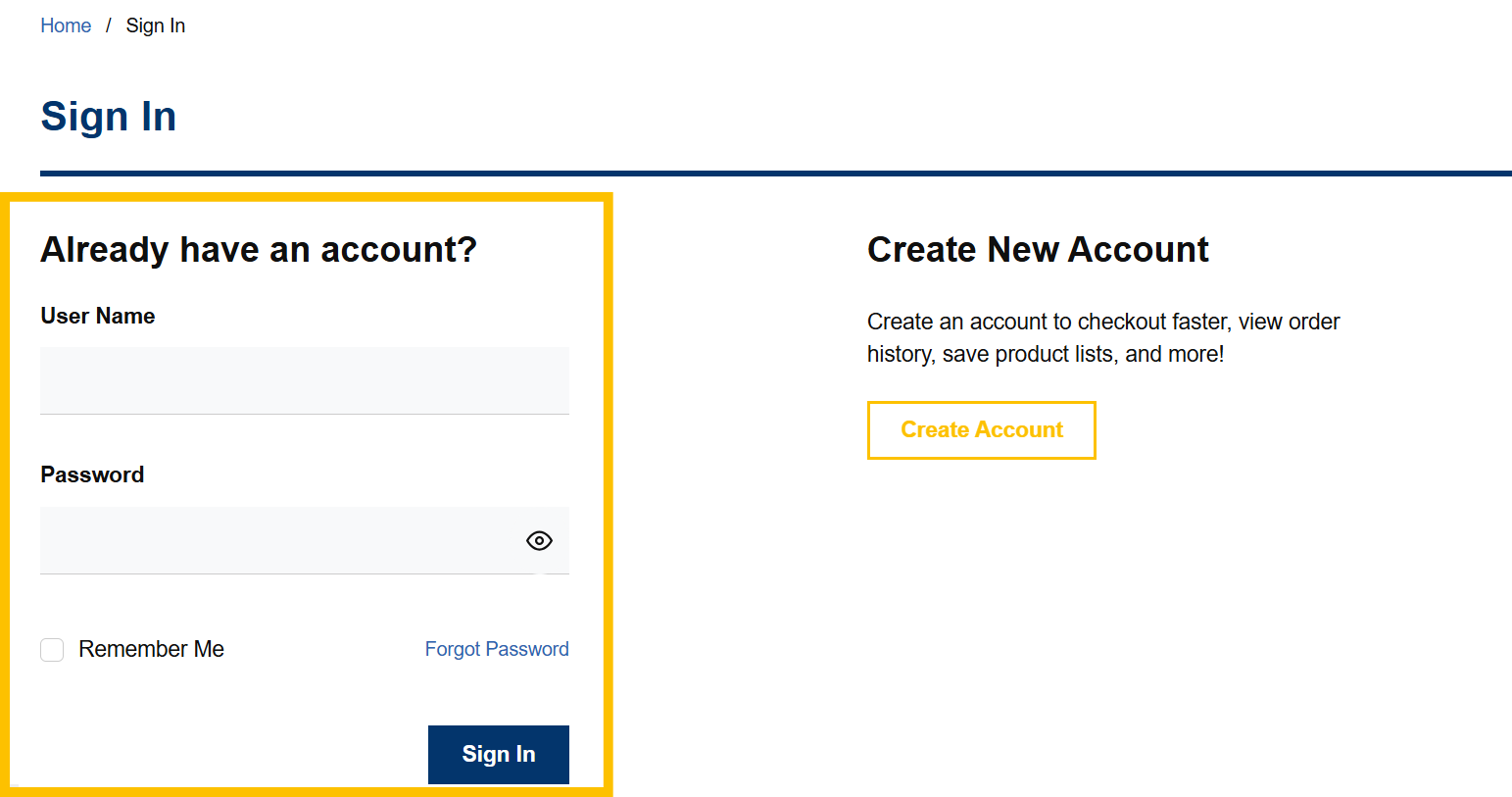
Log in to your VoltDepot.ca account.

Step 2
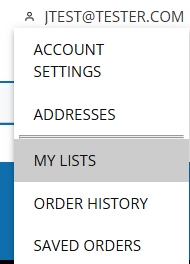
Once logged in, hover over your username and click "My Lists".
Step 3
If you have saved lists, they will be listed here. If you do not have any saved lists, click "Create List".

Step 4
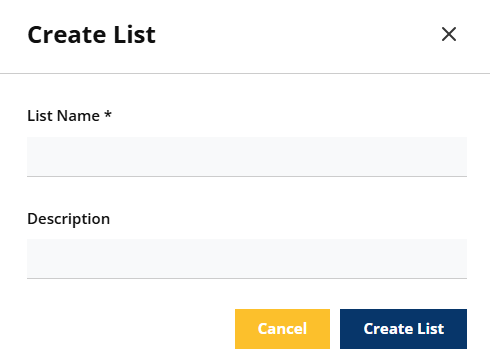
Enter a "List Name" and optionally a description for the list. Then click "Create List".
Step 5
5A- Manual Individual Upload
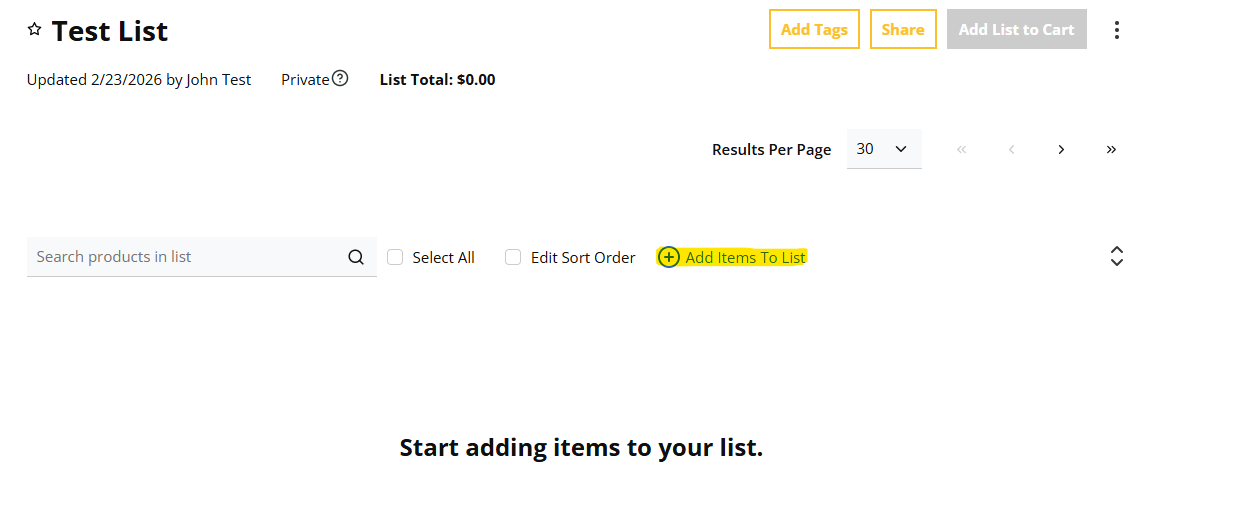
To add items to your list manually, click "Add Items to List".
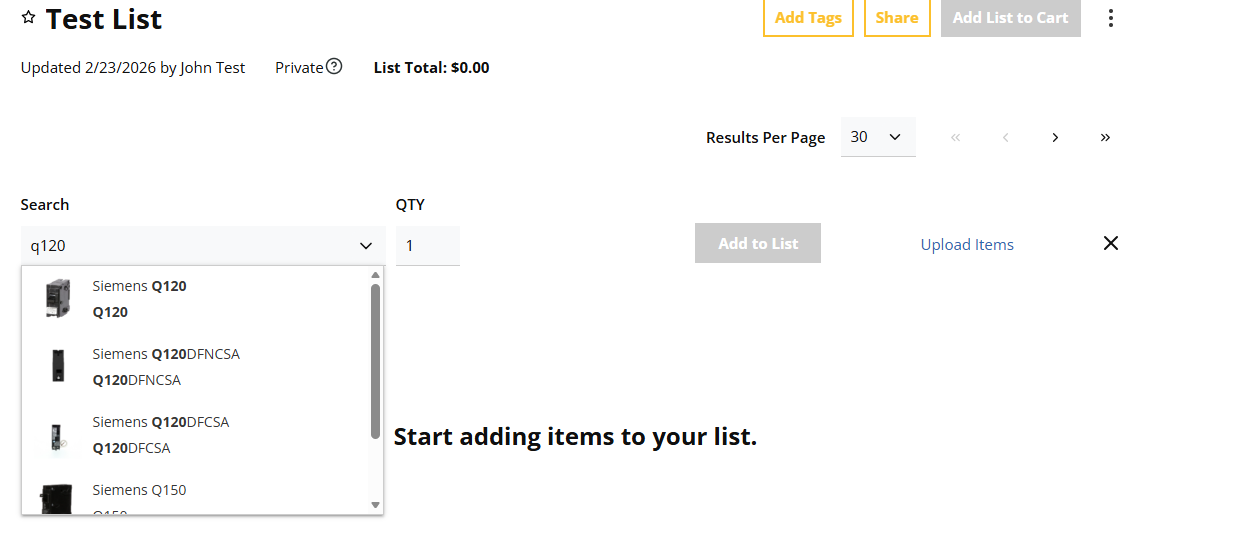
In the search bar, search the product you wish to add to your list. For example, Q120.
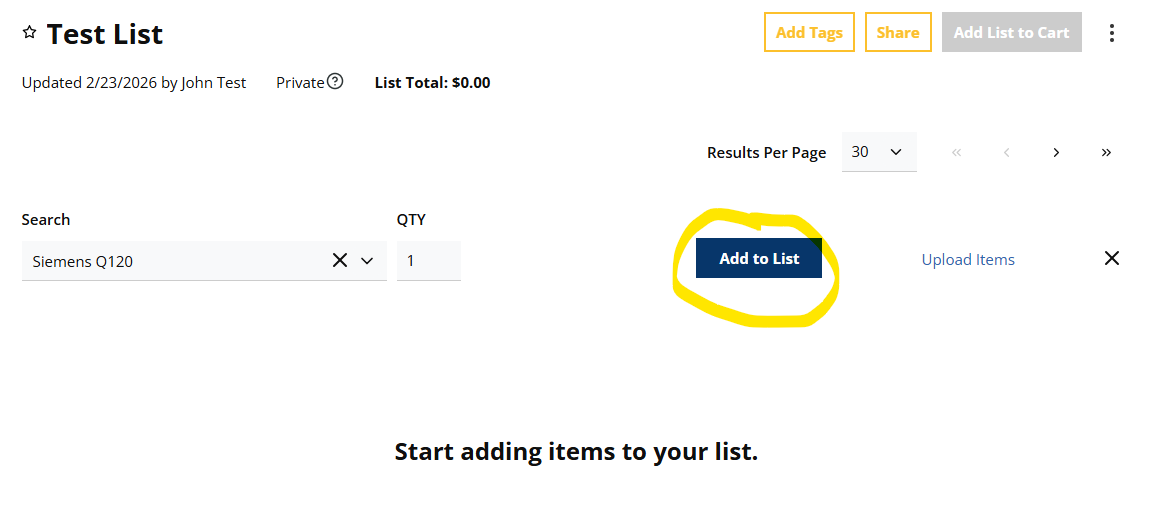
Once your item is clicked, clicked, enter your QTY and then click "Add to List".
5B - Bulk Upload through an Excel Sheet
Click the "Add Items To List" button.
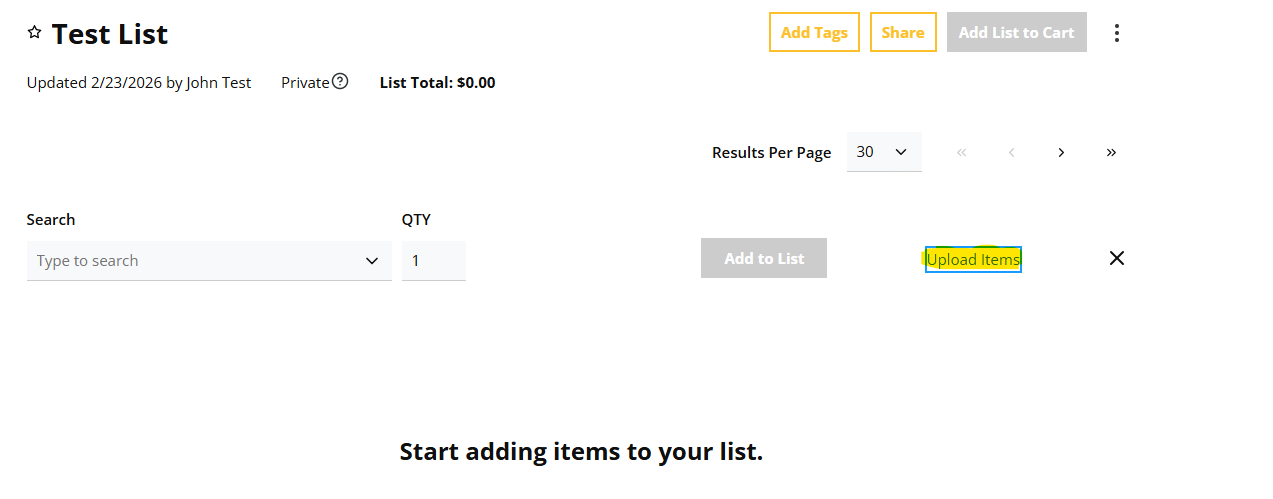
Click "Upload Items".
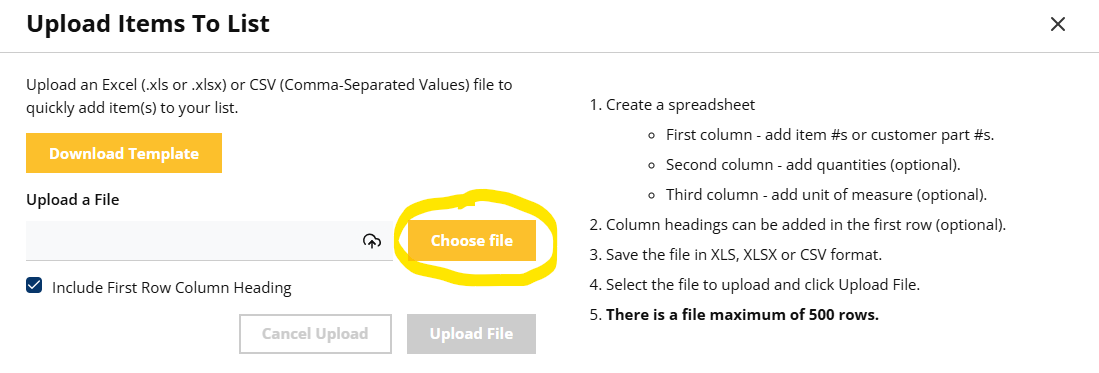
On the screen that pops up you are able to download and upload the template to add in your items you'd like added to your list. Select "Download Template" to download the excel sheet to fill in. Or download it from the button below.
Once the template is completed click on "Choose File".
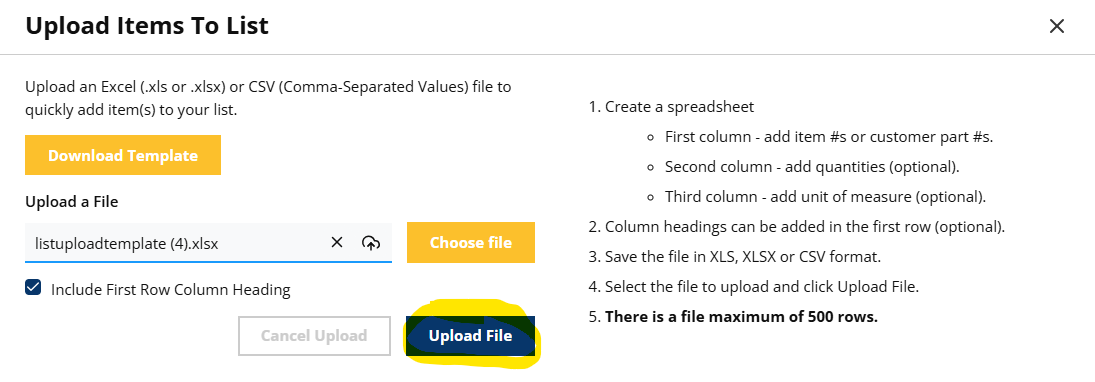
Click "Upload File" to process your document.
If there are any error the pop up page will inform you and you can either go back to your document to edit or continue with the products that were found in the web.
Step 6
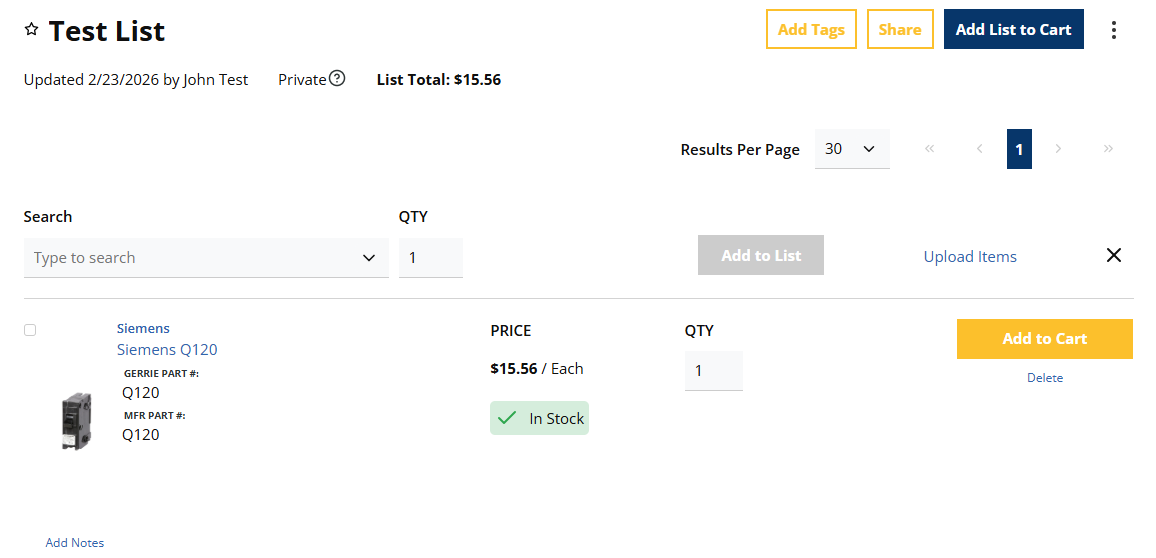
Your item with it's product details will now show in your list. From here you can add it to your cart, change the QTY, add more items and more.
Step 7
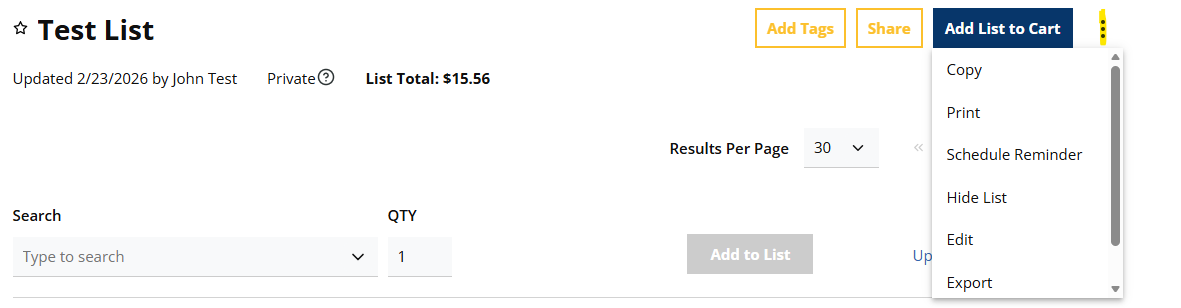
You have many options available for your lists. You can print, share, schedule a reminder, edit, or add new items to your list.